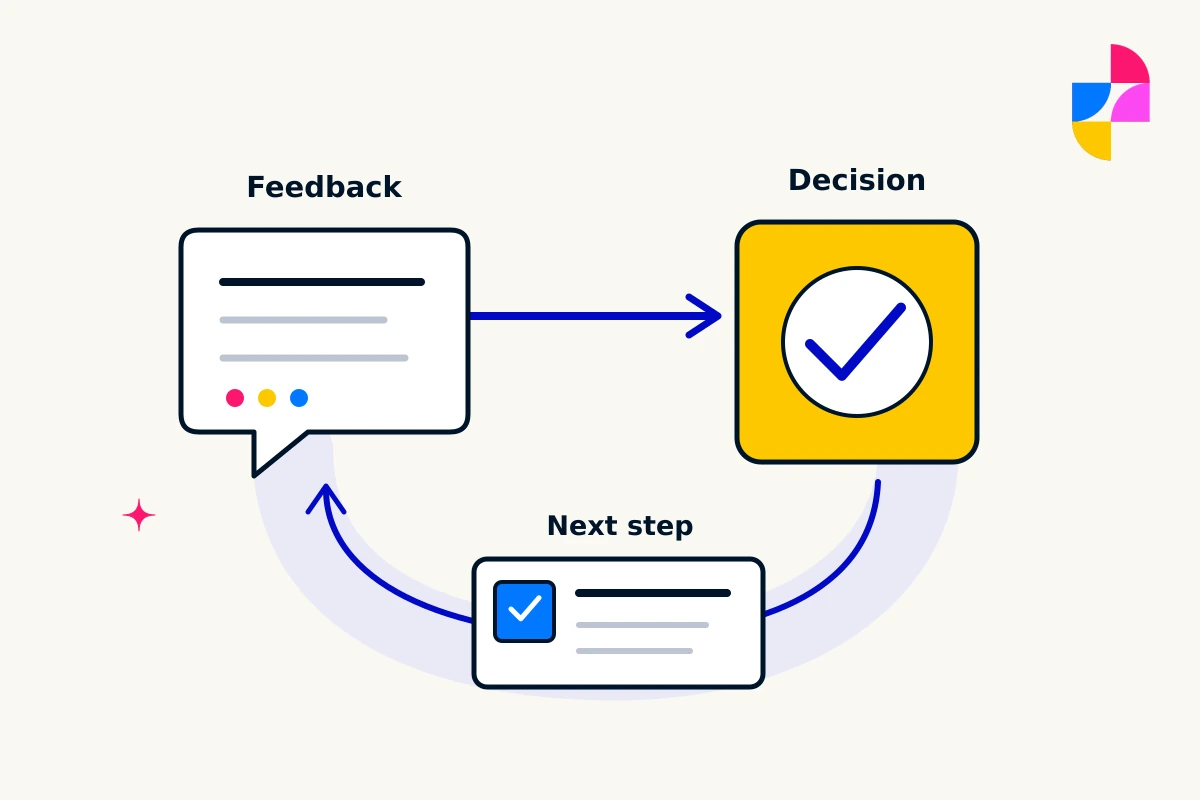
One reviewer wants a shorter page. Another wants more detail. A third has marked an older version. Sending all three sets of comments to the designer does not tell them which direction to follow.
Useful website project feedback turns scattered comments into a clear decision. You can do that in a shared document, a project tool, or another agreed place. What matters is that the current version, unresolved questions, and approved changes are easy to identify.
Give each review a clear job
Before requesting comments, name the page or design version and explain what is ready for review. An early structure review might ask whether the page answers the right customer questions. A later review might focus on approved wording and visual details.
State what remains provisional. Otherwise, someone may spend their review time correcting placeholder text while the important decision about page structure goes unanswered.
Keep the review window and consolidation point visible. Colleagues can contribute separately, but the designer should receive one reconciled response rather than several competing instructions.
Make comments specific enough to act on
For each comment, include the location, the concern, and why it matters. A screenshot or marked-up design can identify the location, but explain the issue in words too.
Compare “make this section better” with “on the service-page draft, the introduction does not say whether this service covers commercial properties. Please make that boundary clear before the inquiry link.” The second comment identifies a business fact and the point where a reader needs it.
Sort comments before sending them:
- Factual correction: information that is wrong or unapproved.
- Customer-task concern: something that may prevent a visitor understanding or using the page.
- Preference: a visual or wording choice without a stated practical concern.
- New request: work that may sit outside the agreed direction or scope.
This does not make preferences irrelevant. It makes the reason for a change visible and gives the designer room to recommend a solution.
Resolve disagreement before it becomes an instruction
Return to the agreed page purpose when reviewers disagree. Ask what each person is trying to protect. A request for shorter copy may concern readability; a request for more detail may concern an important service exclusion. Those concerns could both be addressed without accepting either proposed edit word for word.
If the team cannot resolve a point, label it as a decision needed. Ask the person authorized to approve that part of the work to choose a direction, with the designer explaining any consequences. Do not quietly turn the loudest comment into approval.
Keep a short decision record
Record the outcome beside the feedback, not only in a meeting or private message. A fictional entry could look like this:
- Review item: service-page draft, version 2, introduction.
- Concern: commercial-property eligibility is unclear.
- Decision: add the approved eligibility sentence before the inquiry link.
- Reason: visitors need this information before contacting the business.
- Approval: record the approver and date.
- Status: approved for revision, awaiting a check of the revised version.
Keep rejected and deferred requests with a brief reason. That preserves the decision without making an old comment look like unfinished work.
Finally, check that the revised version reflects the approved changes and identify anything still open. Approval of a design direction should not be mistaken for approval to launch the whole site.
See Imbark’s website design process for the broader project stages. Within each review, the goal is simple: one current version, one consolidated response, and a visible record of what was decided.