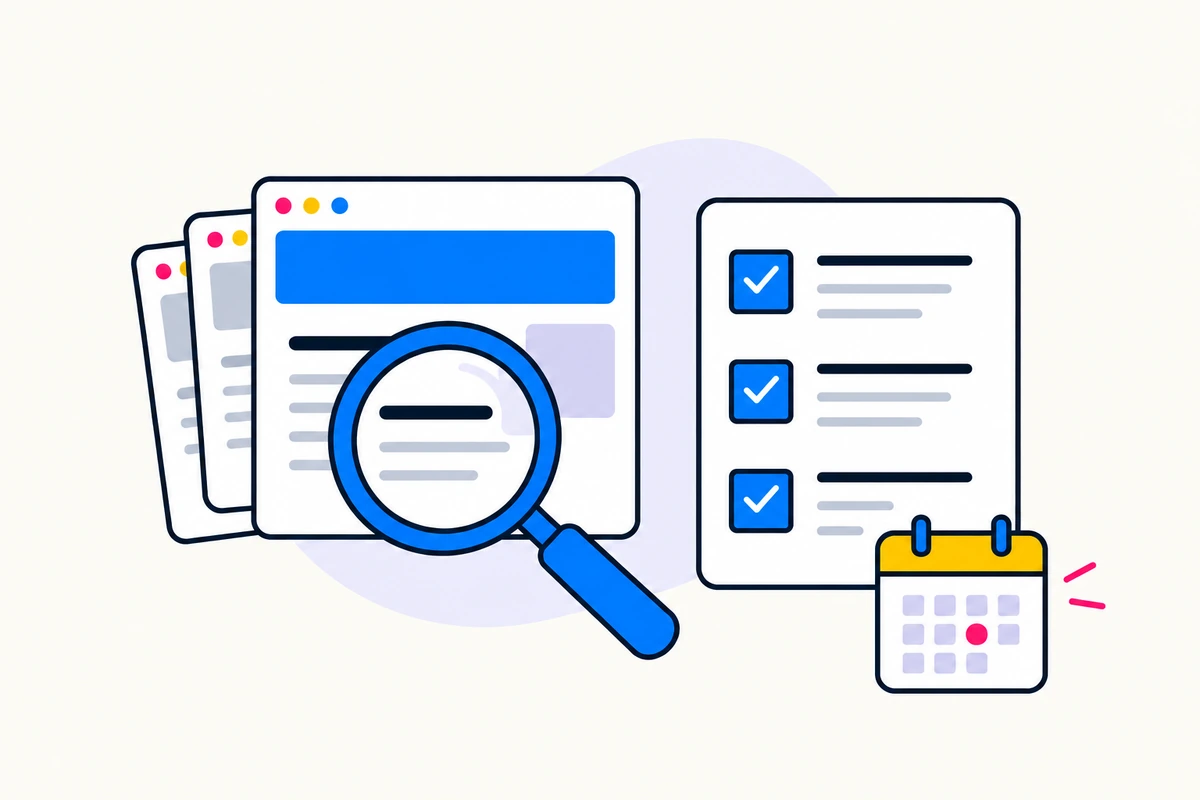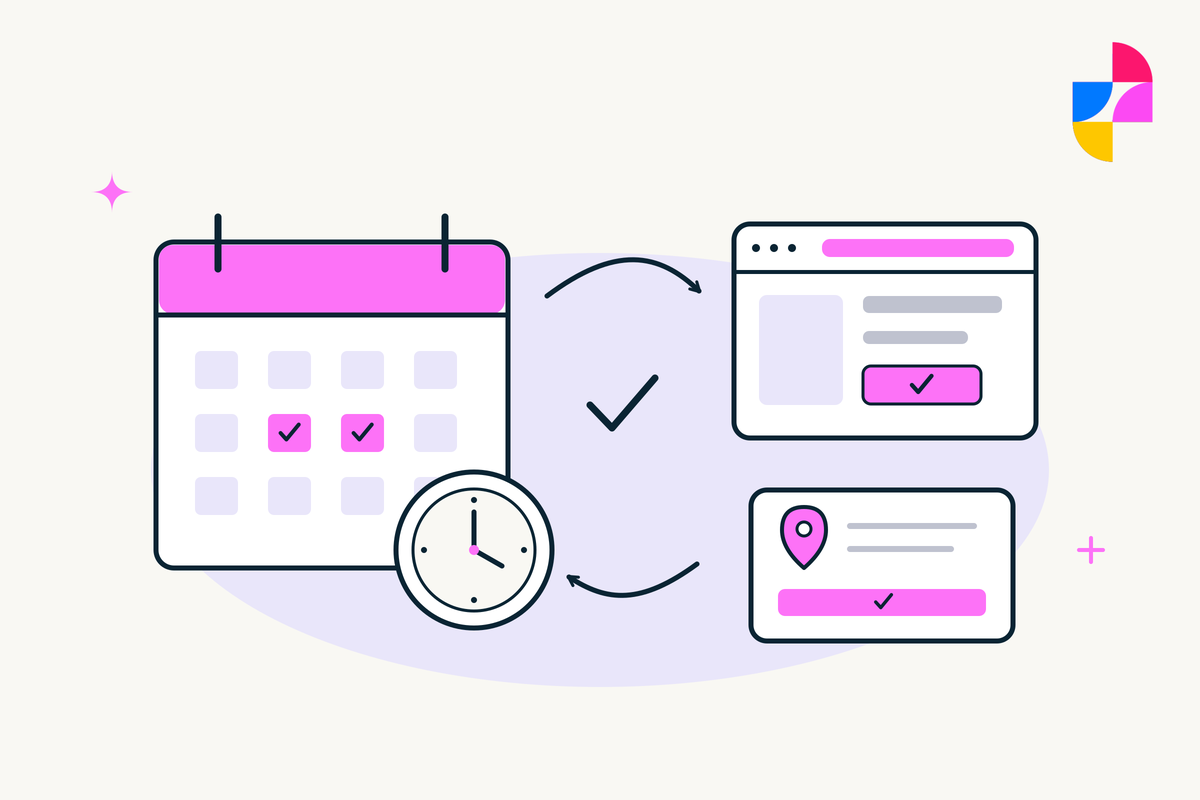
Your business may know exactly when it is closing for the holidays. Your website, Google profile and booking calendar may each have a different opinion.
A useful holiday-hours checklist starts with one approved schedule and follows it through every place customers use to decide whether to visit, call or book. You do not need a seasonal redesign. You need the same answer in the right places.
Start with the schedule, not the announcement
Write down each affected date, the opening and closing times, and the time zone. Include full-day closures and any split hours. Identify who can approve the information and when it was checked.
Separate different kinds of availability. A reception desk may close while an online inquiry form remains available. Taking an appointment request does not necessarily mean someone will respond that day. Describe the actual arrangement rather than letting a visitor guess.
- Date and approved opening hours
- Services or locations affected
- Whether appointments, collections or deliveries differ
- What customers can still do while you are closed
- Who approves changes and who makes them
Keep uncertain dates out of the public version until someone confirms them. A confident announcement is not a substitute for a finished schedule.
Use the right Google Business Profile setting
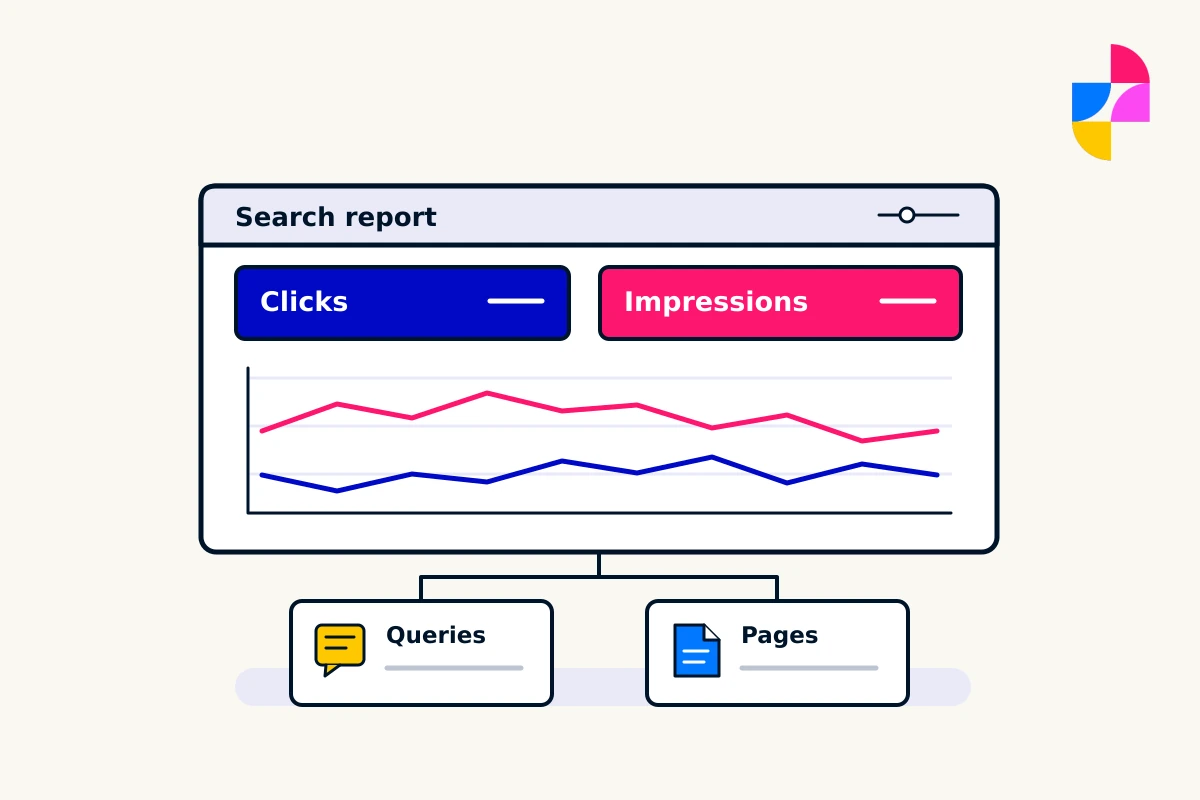
For a short change, use the profile’s special-hours field rather than replacing the normal weekly schedule. Google’s special-hours guidance covers brief exceptions and recommends confirming official holidays even when the hours remain unchanged.
The same guidance distinguishes short closures from closures lasting seven or more consecutive days, which call for the temporarily closed setting. Businesses with different service-specific hours may need More hours instead. Check the current instructions against your situation before changing the profile.
An update post can explain the arrangement, but it does not do the work of the hours field. Check the saved dates and times themselves. If someone else manages the profile, send the approved schedule and ask them to confirm what was entered.
Find every place your website makes a promise
Open the site as a customer would. Start with the contact page, then check the footer, location pages, appointment links and any prominent opening-hours notice. A banner can be correct while the footer continues to say you are open.
Review the next step too. Can someone book a closed date? Does the form confirmation promise a response sooner than the team can provide? Does a downloadable brochure contain hours that need a temporary explanation on its linked page?
Not every place needs a long notice. A concise sentence next to the relevant action is often enough. Keep the normal business information easy to find, and give temporary notices a removal or review date.
Use a small change sheet
Here is a fictional example for a repair workshop. The owner has approved a one-day closure and a return to normal hours the next morning. No emergency service or response time has been approved.
- Google profile: mark the specific date closed in special hours.
- Contact page: add the closure date beside the normal hours.
- Booking tool: prevent appointments during the closure if the tool requires a separate change.
- Inquiry message: explain that the team will review requests after reopening, without promising an exact response time.
- Review date: check the public information before the closure and remove the website notice after it ends.
Use real dates in the actual change sheet. “Next Thursday” is surprisingly durable when it gets copied into three different systems.
Verify the customer view
Saving an edit is one check. Seeing the correct information where customers look is another. Inspect the public Google profile and the website on a phone. Confirm that the dates, hours and wording agree.
Follow booking and contact links to their intended destinations without creating an unnecessary appointment or inquiry. Check whether notices cover important buttons or become difficult to read on a small screen. If a system has not reflected an update yet, record that uncertainty and check again instead of calling it finished.
Keep a simple record of who updated each destination and when it was verified. After the holiday, check that normal availability has resumed and temporary website wording has been removed.
Make the next update easier
Save the destination list for future closures, special events and seasonal changes. The dates will change; the places that need attention usually will not.
Imbark’s Google Business Profile services help keep business information useful and accurate. Our website support can address the matching website changes. Send us your website, profile link and approved schedule to discuss the work involved.